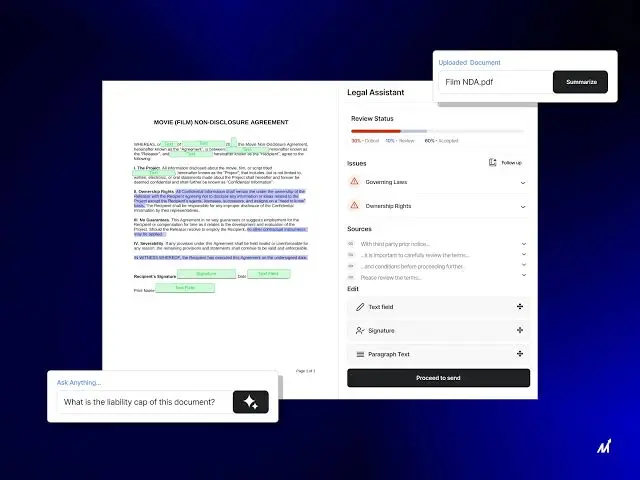

AI-generated answers for document analysis come from tools that read your file and point to the passage behind each answer. Adobe Acrobat lets you chat with a PDF to ask questions, compare files, and extract key information, with numbered references that highlight the source text.
This article is for college students comparing platforms that give AI generated answers to streamline document research and analysis.
Ask Questions of a PDF With AI: Document Analysis and Citations
To ask questions of a PDF with AI, upload the file, sign in, and type a question, then check the answer against the cited passage. Adobe’s page says you can analyze PDFs and extract facts, figures, clauses, and insights, including data in charts and tables, and that numbered references in answers highlight the matching source content in your file. For papers you read in a browser, a Chrome extension called Google Scholar PDF Reader adds an AI outline and linked citations.
- Questions to start with: Adobe’s page lists prompts such as what the document is about, what the most important sections are, and what changed between two documents.
- Tables and charts: Adobe’s page says its assistant analyzes charts and tables to simplify complex data from your PDF.
- Linked citations: an information literacy guide says citations in the Google Scholar PDF Reader are often linked, so you can preview the referenced source with one click.
- AI outline: a Kean University guide says the Scholar PDF Reader can create a summary and outline for many, but not all, articles.
- Verification: read the highlighted passage before you quote or paraphrase an answer.
Best AI Tools for College Students Reading PDF Research Papers
The best AI tools for college students reading PDF research papers include Adobe Acrobat, Google Scholar Labs, Google Scholar PDF Reader, ResearchRabbit, Semantic Scholar, and Elicit, and they split into tools that read a file and tools that find papers. Adobe’s chat tool answers from a PDF you upload. Scholar Labs and Semantic Scholar help you find papers, and ResearchRabbit maps related work from papers you already trust. Compare the table, then combine one finder with one reader so you cover both jobs.
| Platform | Best For | Key Details |
| Adobe Acrobat chat with a PDF | Reading and questioning a file you already have | Accepts PDF, DOCX, PPTX, TXT, and RTF; numbered attributions highlight source text; analyzes charts and tables; compares files; sign in to ask questions |
| Google Scholar Labs | Finding papers that answer a detailed question | Google’s blog says it identifies key topics in your question, searches Scholar, and explains how each paper addresses it; a Kean University guide says you must be logged in to a Google account |
| Google Scholar PDF Reader | Skimming papers in the browser | A Chrome extension with an AI outline and enhanced citation options, according to a Kean University guide |
| ResearchRabbit | Mapping related papers | University library guides call it a free citation based literature mapping tool that exchanges collections with Zotero |
| Semantic Scholar | Quick summaries while searching | Ai2 describes it as a free AI powered research tool, with TLDR summaries and citation cards in its reader |
| Elicit | Pulling the same details from many papers | A Syracuse University guide says it supports search and screening for systematic reviews and links extractions to source passages |
Finder and reader: a University of Illinois Chicago guide lists search, mapping, summarizing, and citation saving as separate jobs, and shows that no single tool does every one.- Experimental: an information literacy guide describes Scholar Labs as an experimental AI feature, and Google’s blog says it was first available to a limited number of logged in users.
- Guide sources: most competitor details here come from university library guides and third party reviews, so confirm them on each tool’s own site.
Summarize Research Papers With AI: What to Trust and What to Check
AI can summarize a research paper into an overview, a section summary, or a one sentence TLDR, and each summary is a starting point, not a substitute for the paper. Adobe’s page says you review a brief AI overview of an uploaded file and can ask for a summary of a specific section. Semantic Scholar says a TLDR is an AI generated summarization that helps you judge a paper’s key aspects quickly. Check names, numbers, and methods against the paper before you rely on a summary.
- Overview then questions: Adobe’s page says you can pick a suggested question after the overview or ask your own.
- Section level: Adobe’s page says you can ask for a summary of a specific section, or questions that analyze data across tables.
- Outline first: a Kean University guide says the Google Scholar PDF Reader builds a summary and outline automatically for many articles.
- One sentence: a guide calls Semantic Scholar’s TLDR useful for initial relevance screening.
- Extractions: the Syracuse guide says every Elicit extraction should still be checked against the original paper.
Upload Files, Ask Questions, and Get Citations for Research
To upload files, ask questions, and get citations for research, drop one or more files into the tool, review the suggested questions, sign in, and ask. Adobe’s page says you can drag and drop PDF, DOCX, PPTX, TXT, or RTF files, that non PDF files are converted to PDF, and that answers include numbered references you can click. Files are deleted from Adobe’s servers unless you sign in to save them. Export formal citations from a reference tool rather than from a chat answer.
- Several files: Adobe’s page says you can drag and drop one or more files at once, which helps when you compare sources.
- Privacy: Adobe’s page says it does not use customer content to train its language models or permit third parties to manually review it.
- Reference managers: a University of Illinois Chicago guide says ResearchRabbit can import collections from Zotero, and Semantic Scholar’s FAQ describes saving papers to Zotero.
- Languages: Adobe’s page says the assistant supports English, Japanese, French, German, Italian, Spanish, and Portuguese.
- Free: Adobe’s page says you can chat with documents and review content for free.
Frequently Asked Questions
Do I need an account to use these tools?
Often yes. Adobe’s page says you upload a file and then sign in to ask questions, and that your file is deleted unless you sign in to save it. A Kean University guide says Google Scholar Labs is only available to people logged in to a Google account. Check each tool’s sign in rules before you plan a study session around it.
Can one tool both find papers and read my files?
Usually not. A University of Illinois Chicago guide lists searching papers, mapping articles, and summarizing papers as separate functions across tools. Adobe’s tool reads files you upload, Scholar Labs and Semantic Scholar find papers, and ResearchRabbit maps related ones. Pair a finder with a reader, and keep your sources in a reference manager.
Is Google Scholar Labs available to every student?
Not necessarily. Google’s announcement described it as available to a limited number of logged in users, and a Kean University guide says it is only for people logged in to a Google account. Availability may have changed since those pages were written, so check Google Scholar directly. Your library’s AI tools guide may also list what your school supports.
How do I avoid citing something the AI got wrong?
Open the source. Adobe’s page says selecting a numbered reference highlights the related text in your document. For papers a search tool recommends, read the paper itself, since Google’s blog says Scholar Labs explains how each paper addresses a question and that explanation is a pointer, not proof. Quote only what you have read in the original.
AI-generated answers for document analysis help most when they link to the source passage, so verify each answer there before you cite it.